
Docker Swarm with Hands On
Multiple containers with manager & worker nodes

On HashNode I would be sharing my understanding of the topic. My goal is to create helpful content for the community in making tech easy to learn. My audience can find practical and hands on about any topic related to IT infra including, DevOps and cloud.
Docker Swarm
Using docker swarm we create one manager node and one/multiple worker nodes. Then the manager must distribute the load according to available resources so that the web application runs smoothly.
This type of system also helps when any of the worker nodes may fail, other nodes can still provide the application.
From a security perspective also there is a token generation for worker nodes that helps in keeping our application secure.
Docker swarm using services
1. Setup user data while launching instance
#!/bin/bash
# Author: Mohit Kamra
# Purpose: To install docker and add $USER to docker group to get ready made container for Ubuntu Operating system
sudo apt update
sudo systemctl enable docker
sudo systemctl start docker
sudo apt install docker docker.io -y
sudo usermod -aG docker $USER
Adding this to user data in EC2 would create a ready to configure instance to setup docker swarm or docker compose.
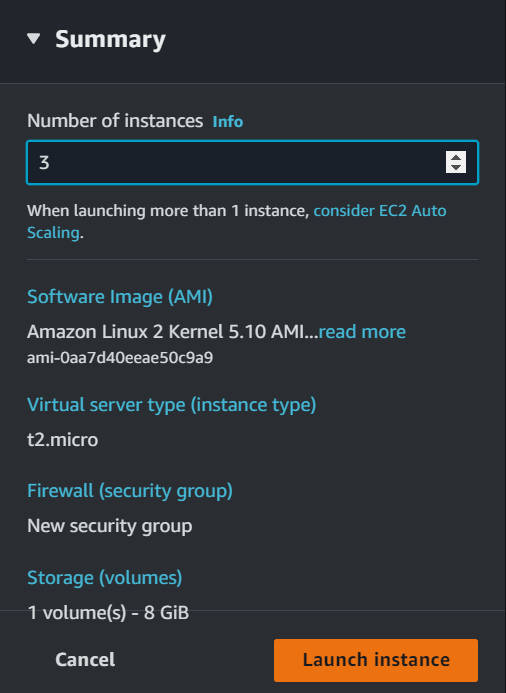
Also don't forget to select 3 instances (1 for manger and other 2 for worker nodes)
2.Setup Manager and worker nodes
Let's perform this process on EC2 hands-on
We will create three EC2 instances and make one of them a manager and the other two worker nodes. Here
swarm-manageris the manager node andswarm-worker1swarm-worker2are the worker nodes. Docker should be installed in all the nodes.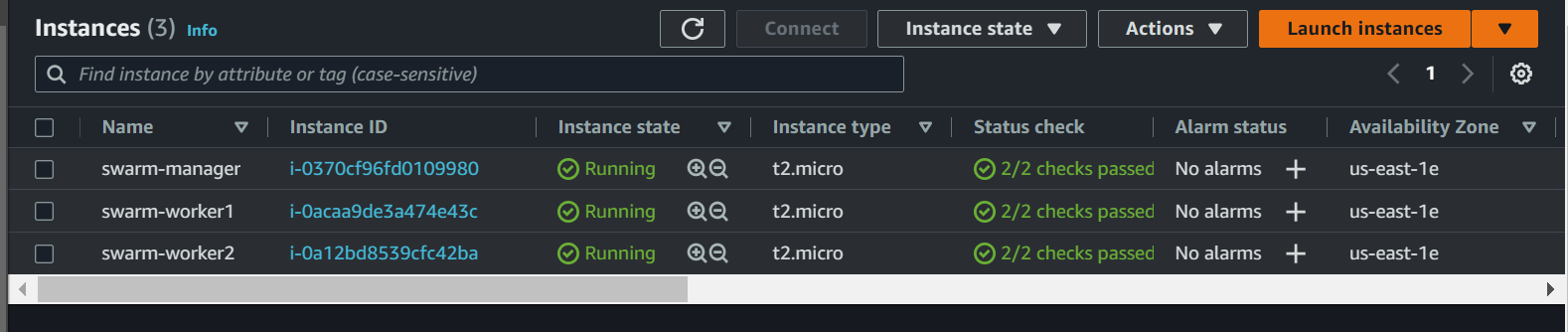
After that, we can either connect through the EC2 console or any other shell (windows subsystem for linux). In the
swarm-managerwe woulddocker swarm initto start our swarm. It would generate a token which is for the worker nodes.In the manager node ensure to open inbound port in security group 2377 to open for all.
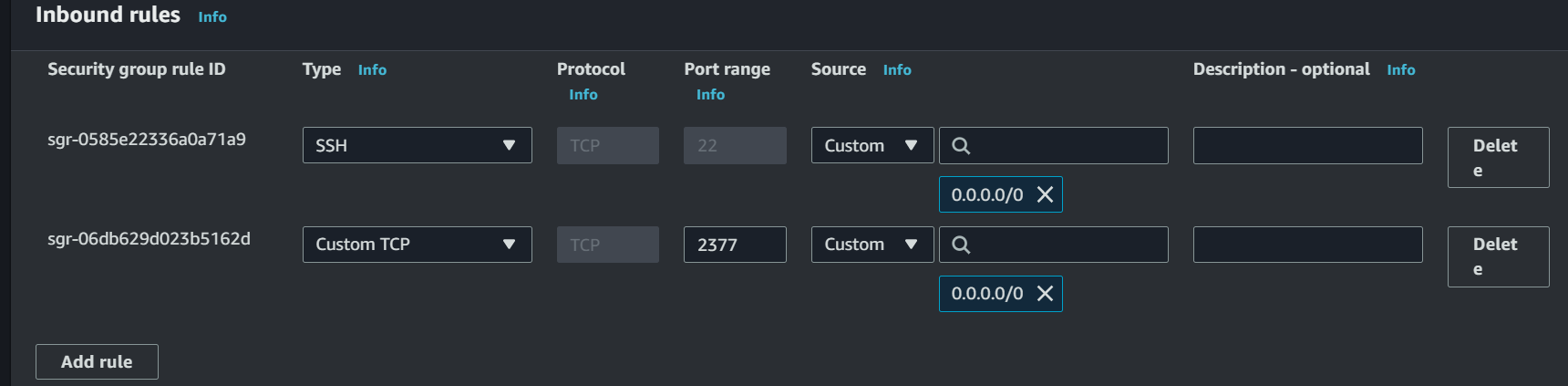
In the worker nodes, we would run this token to add them to our swarm.

Using
docker node lswe can see the manager and worker nodes presend in our swarm
3.Creating the service
Next thing that we would do is to create a service. The
servicewould be created by manager node. The worker nodes would be running thetasksTo find out who is the worker node we rundocker infowhich gives detailed info of whole swarm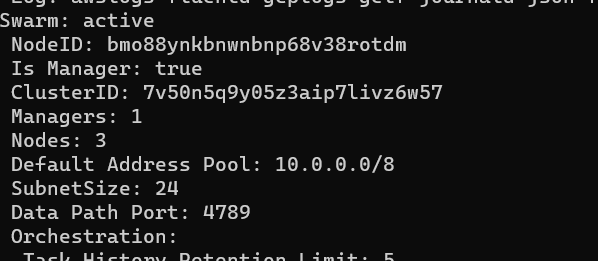
After that we create a service for the manager using
docker service createcommand. It would require--namename of service--replicasNumber of manager and worker nodes--publishport mapping among swarm and host machine (manager node)name of the image from docker hub
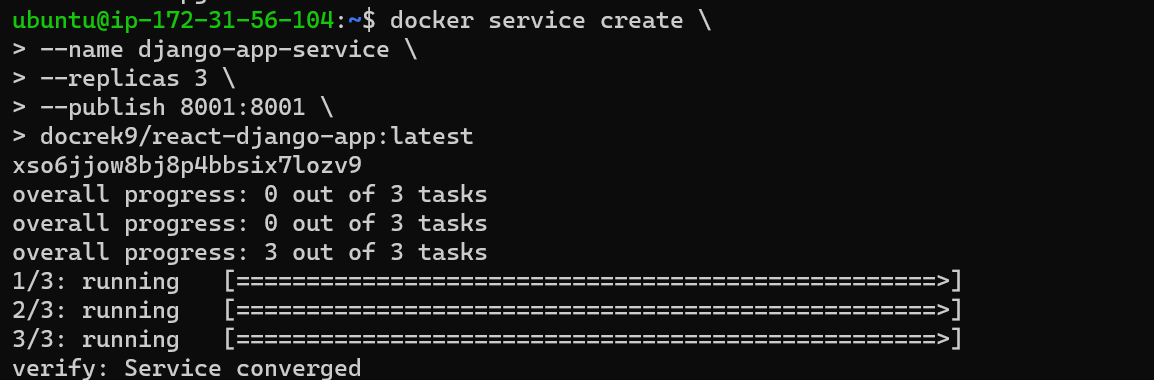
We would also be verifying if our service is created using
docker service lsand if the container is up and running usingdocker ps
4.Running our Web Application
Through Public IP along with port number we can view the webpages in our browser. Ensure to allow particular port in
inboundrules under security group of instance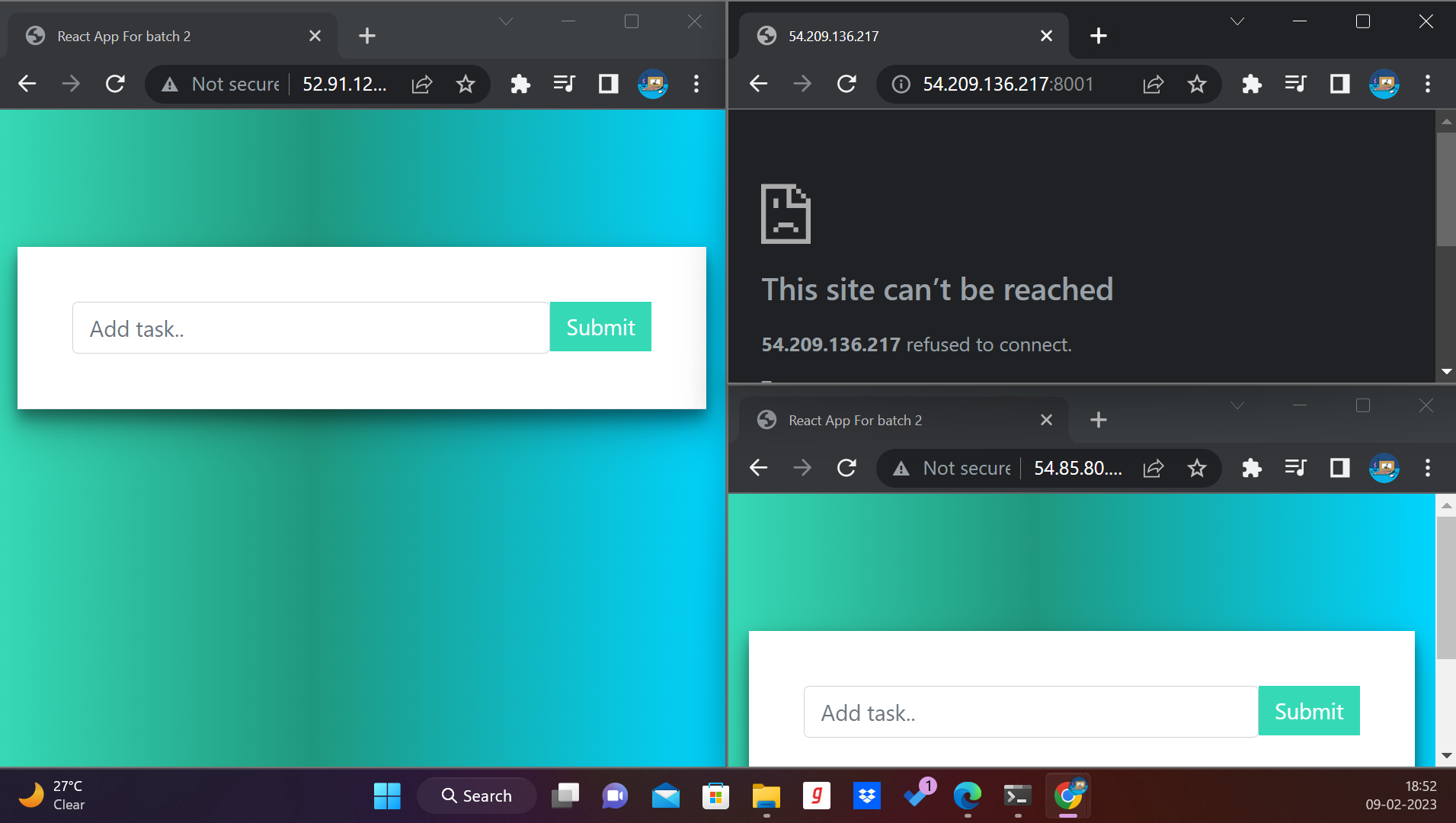

We can see from
docker node lsthat one worker is down and one is serving and manager is also up. Manager can assign
We can also see that if container is killed then it can Auto Heal and the manager saves the swarm from getting destroyed internally.

Suppose if any of the worker node leaves the swarm, only that particular node would go down. The production code stays safe on the manager node and working worker nodes.

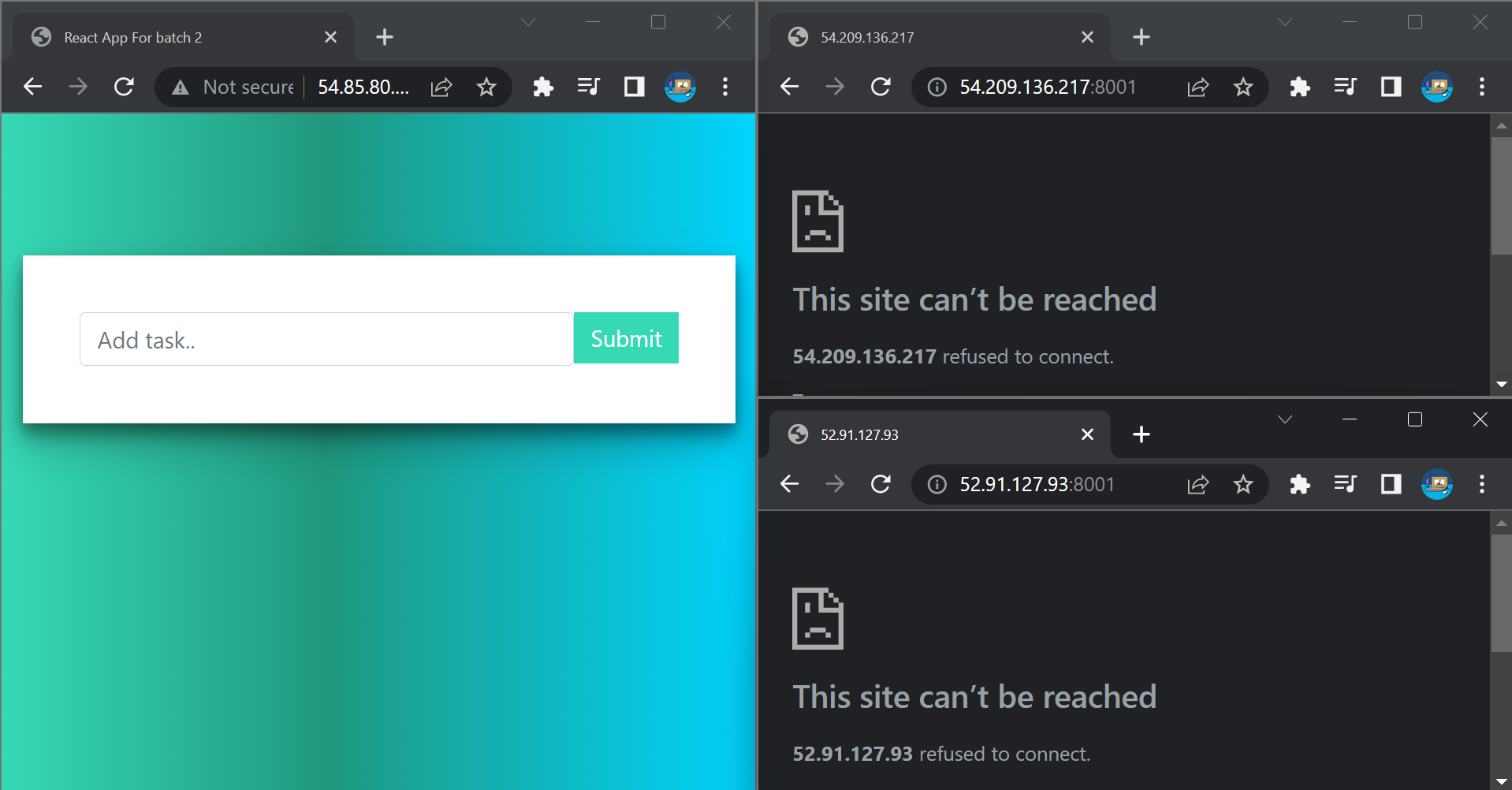

If manager goes down then whole swarm finishes.

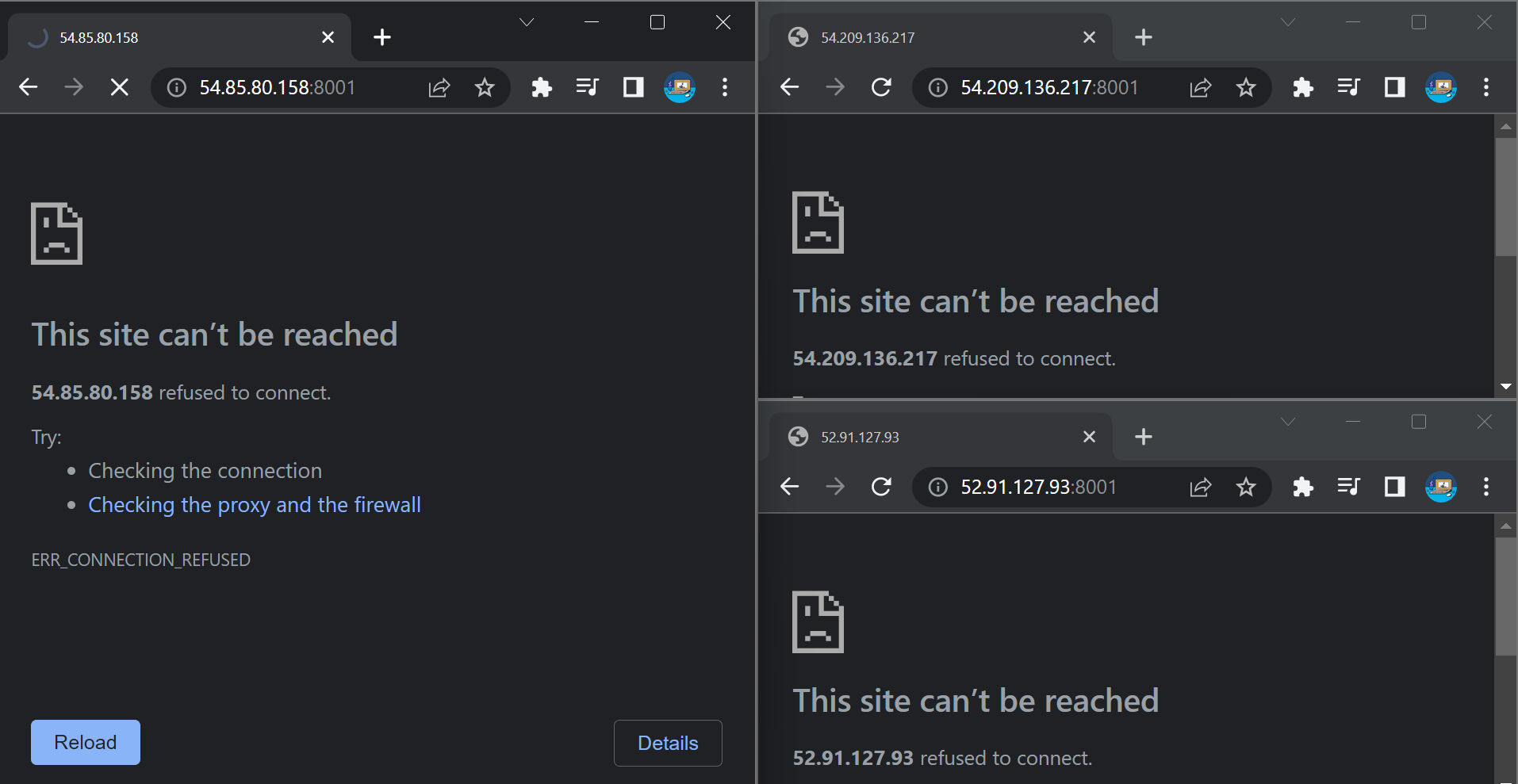
To remove the service we use
docker service rmcommand
Docker swarm using YAML file
We can create a single configuration file (YAML) in order to create the cluster. It is a faster way to deploy our app using a single file.
1.Create a YAML file
version: '3.7'

services:
    django-app:
        image: docrek9/react-django-app:latest
        ports:
            - "8000:8001"
    mysql-db:
        image: mysql:latest
        ports:
            - "3306:3306"
        environment:
          MYSQL_ROOT_PASSWORD: test@123
These file content are also known as Docker stack as it contains the services to be used in creating the container cluster
2.Deploy the cluster and add replicas
First of all create a container cluster using docker swarm init

This would be deploying a cluster from our configuration file. It is visible from above screenshot that 2 services are also created

If we check with this method, there are no replicas. To create replicas we have to explicitly give the command
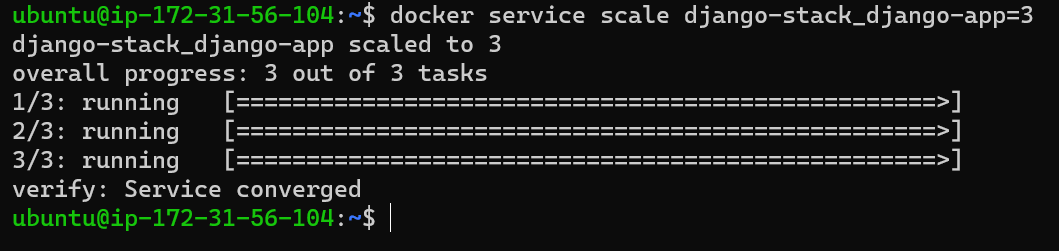
To remove the stack we would simply remove using docker stack rm command

Ensure to take larger capacity of instances to avoid crashing the server. Using the above command the manager node would create 3 replicas across worker node
References
- TrainWithShubham for pratically demostrating docker swarm


