
Git Advance Concepts

On HashNode I would be sharing my understanding of the topic. My goal is to create helpful content for the community in making tech easy to learn. My audience can find practical and hands on about any topic related to IT infra including, DevOps and cloud.
branching, restore, reset, reverting, cherry-picking, stashing, squashing, rebasing, merging
Git becomes a lot more interesting when we know about its advanced features. Everyone knows about basic git features which are used in routine but sometimes we encounter situations like collaboration with other people, changes in client requirements, the addition of new features, and rolling back to old features where advanced concepts in git are used.
Branching
Branching creates a new branch to experiment without disrupting the main branch where the code resides. Let's understand by jumping into the shell.

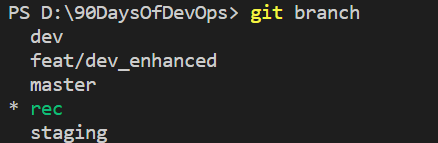
The command git checkout -b new_branch would simply create a new branch. We can see a list of already created branches using git branch In the given screenshot, we can see all the existing branches.
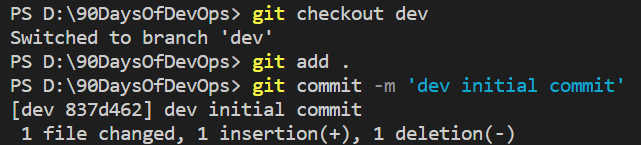
Now we switch to the existing dev branch using git checkout dev and create, add and commit file dev_file.txt as shown in screenshot given below.
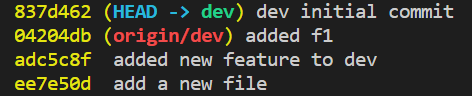
After this, we check the git log --oneline to display hash id and commit message. We also check current HEAD points to the dev branch as shown below. We also know that it is on the local repo branch as HEAD is pointing to dev and not to the origin/dev which is the remote repo branch. After we push the code only then HEAD would point to origin/dev
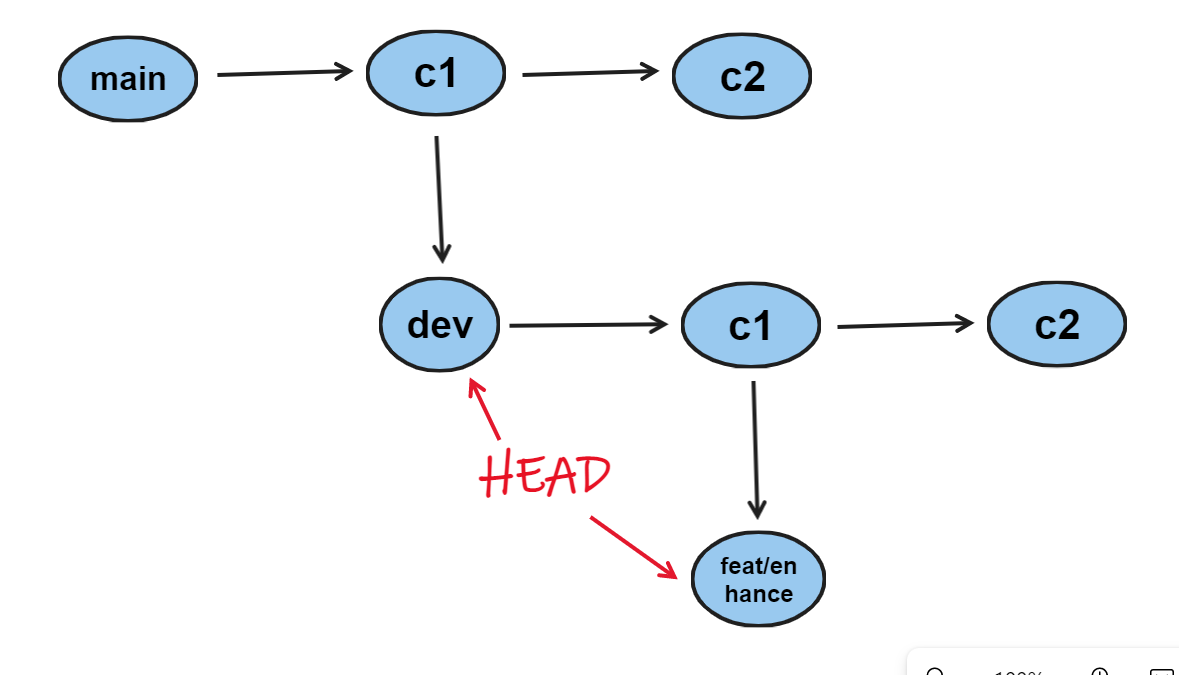
What would happen when we create another branch from the dev branch? Where would it's a head point to?


As it is evident from the above screenshot, the sub-branch feat/enhanced_dev is created and HEAD points to its parent dev and itself feat/enhanced_dev branch.
Restore, revert and reset
First, we check if we have made any commits or not using git status command after making the required changes to the file. The following command would show an untracked file. If we add files to git using git add <filename> we have our files in the staging area. We can only use git restore command in the staging area (after git add) while git revert is used when we want to revert the committed file (after git commit).

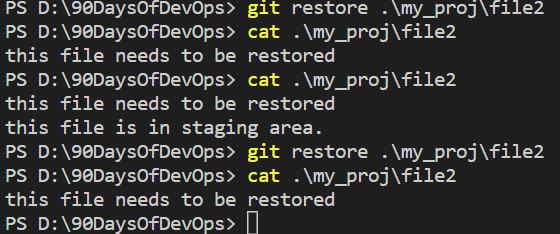
After we add the file2 to the staging area, with the help of the git restore the command we bring it to the previous state.
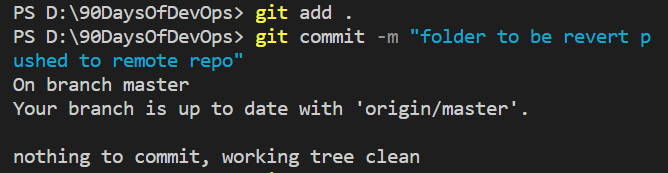
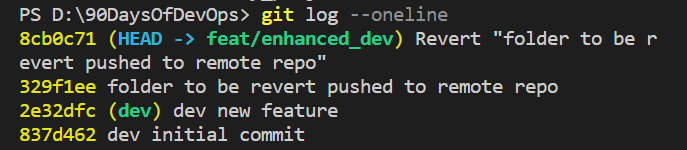
From the git log it is evident that after commiting files in folder and using it's commit hash id we were able to revert the whole folder existing in branch feat/enhanced_dev

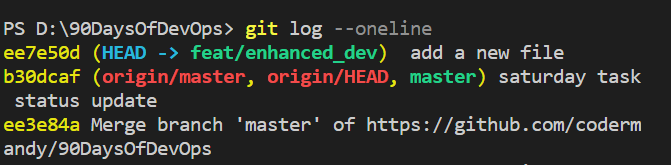
Now, if we want to reset to some past commit we use git reset --soft <commit-id> Then using git log --oneline we check the HEAD and find that it points to the same commit-id we mentioned in reset command. The --soft option does not delete file from local repo while --hard option permanently delete file and usually not recommended to use. Given below is output of git log --oneline and current HEAD points to same hash-id mentioned in above screenshot.
Cherry Picking
It is a process in which commits from other branch can be bought to our current branch. We should know hash id of the commit we are going to cherry pick into the current branch.
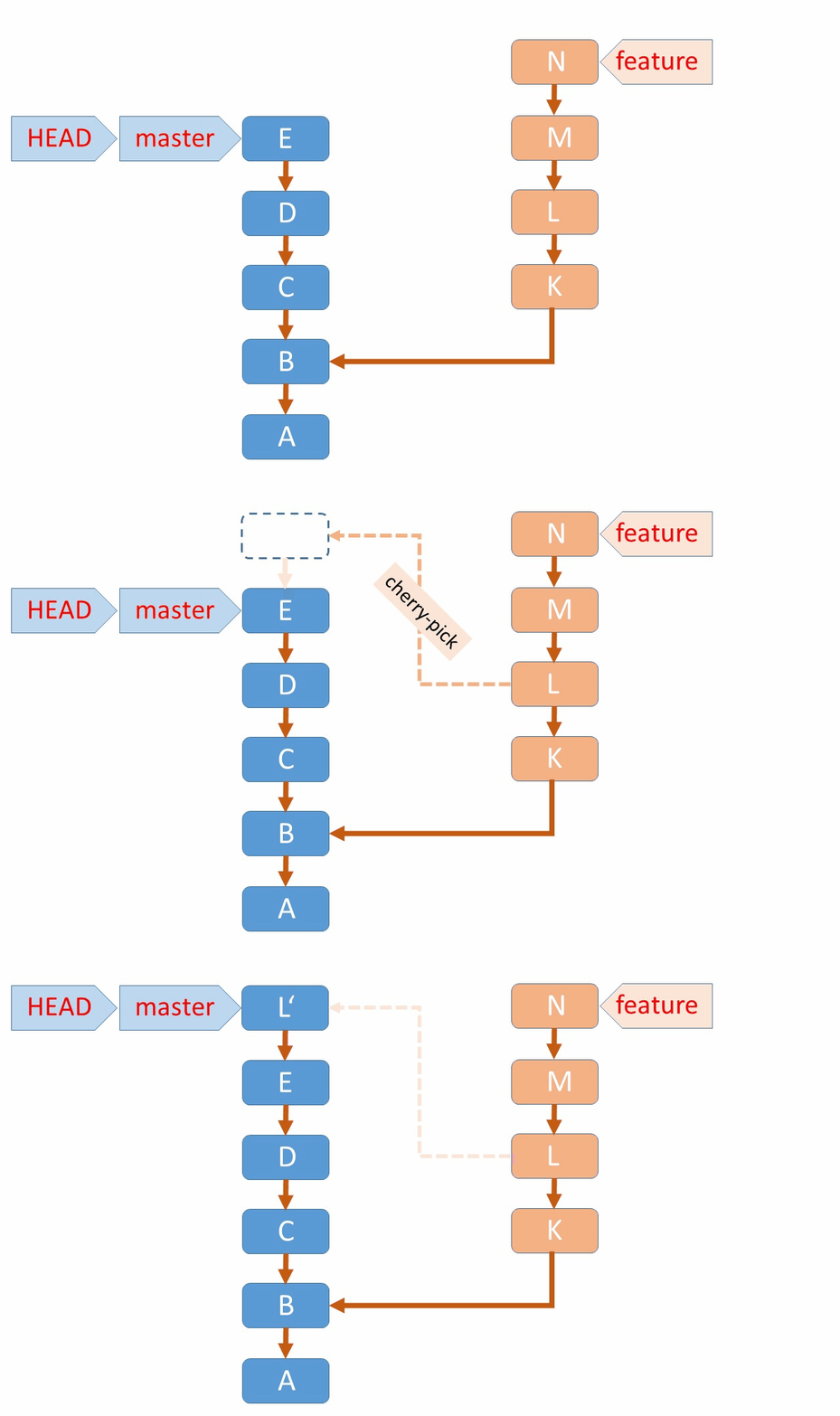
Let's say, we have two branches rec and dev and we will cherry pick one commit of rec into the branch dev.
A file
rec_branch_fileis added and commited in rec branch. Note the hash id of commit 51dbd11
Now just checkout to dev branch and enter
git cherry-pick 51dbd11and voila, same file is created ondevbranch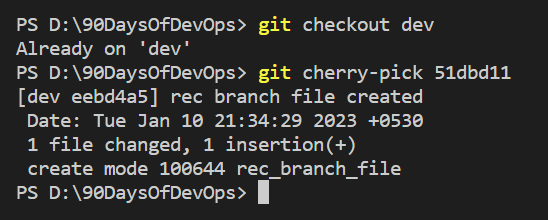
Stashing
This is used to save changes in local repo and keep them aside before moving them to staging area. Once we are back to current branch after switching to other branch , we can revert changes in local repo.
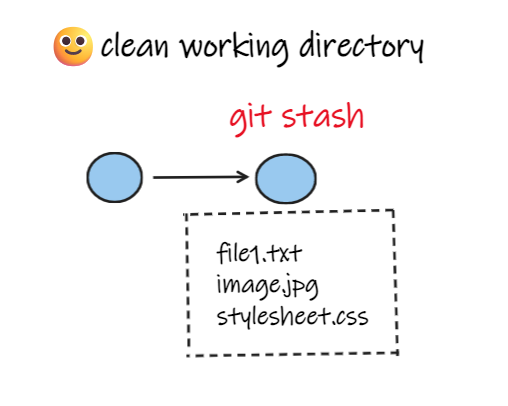
Make the required changes in your branch ie. create, remove, update or delete any content in file
Use
git stashto save the changes to stash list. We may usegit stash -uto add any untracked changes to our stash list.We can use
git stash listto show the changes saved in stash list. To apply the changes after coming back from other branch we can usegit stash apply <stash- list-number>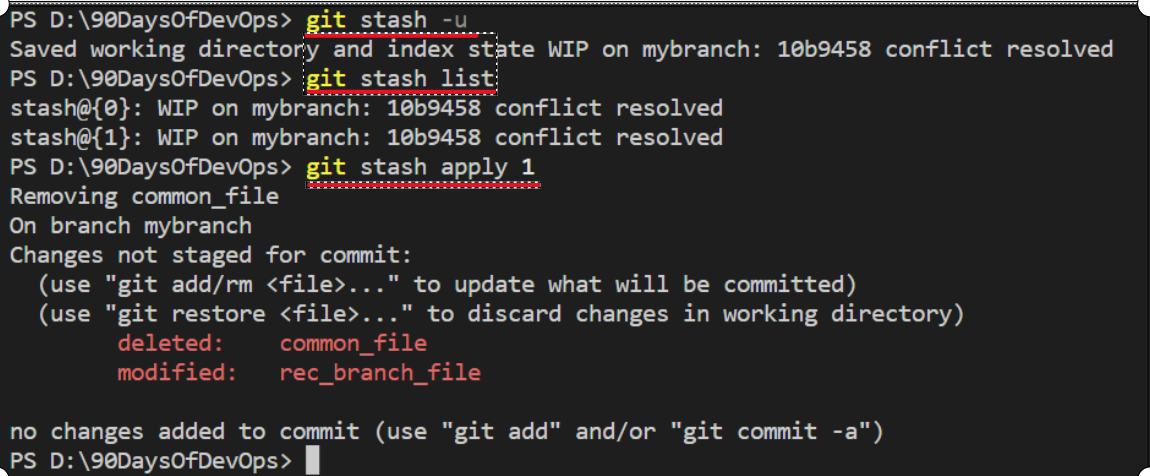
What are merge conflict and how to resolve?

Merge conflict occur when two or more developer are working on the same file but have different code. Let's understand with example.
Dev 1 creates a file on local repo, moves it to staging area with
git add <filename>and commits file withgit commit -m <msg>command.Another Dev 2 pulls the code from same repo. Then it modifies the same file, make some changes and pushes changes to the remote using
git push orign <branchname>Dev 1 comes next day, pulls the remote repo using
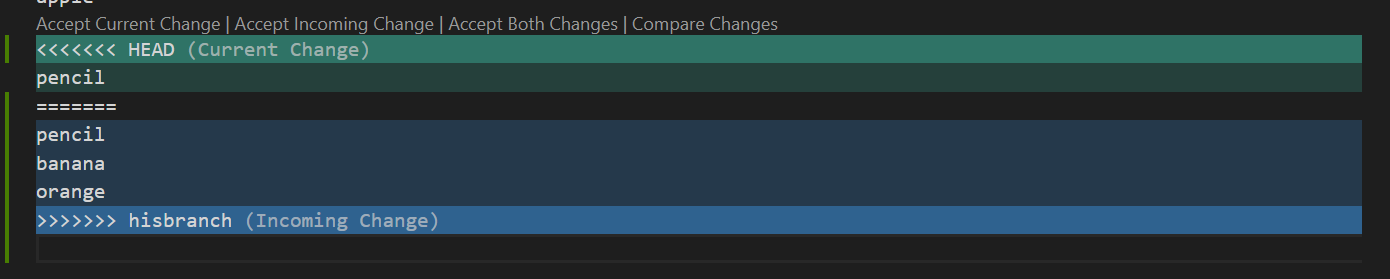
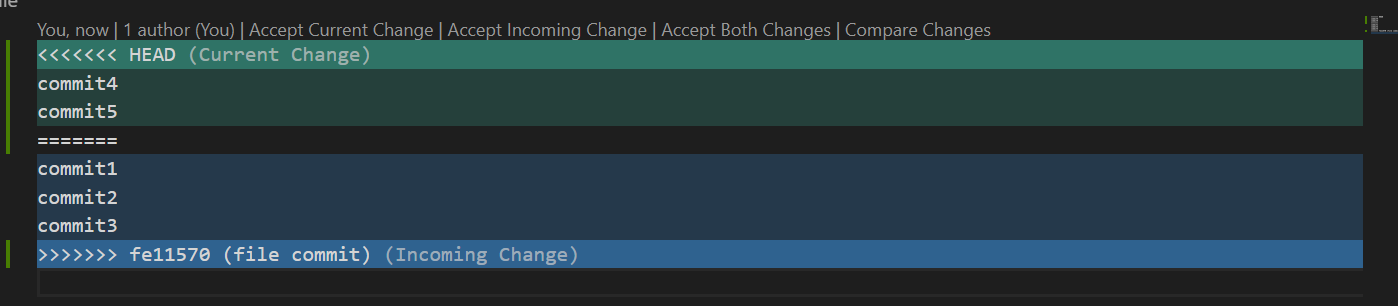
git pull origin <branchname>he finds merge conflictTo resolve merge conflict there are four options as shown in above screenshot.
a. Accept Current Changes: This will keep the local changes or current branch changes.
b. Accept Incoming Changes: This will keep the remote branch changes or merged branch changes.
c. Accept Both Changes: Keeps the both local/current and remote/merged branch changes.
After resolving, Dev 1 needs to add and commit the changes. Then he needs to push the changes to remote repo so that further conflicts do not occur.
Merge Conflict while merging two branches
We can also see conflicts happening while merging two branches. Let's say we have my_branch and his_branch
We can clearly see my_branch has 4 items while his_branch has 6 items. Confict can happen at line 4 as it is common in both branches.
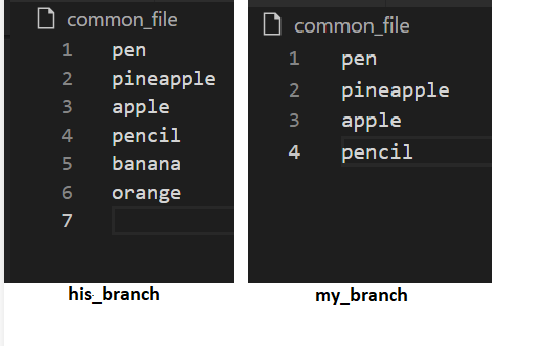
Now my_branch (current_branch) wants to merge features of his_branch (branch_to_be_merged) by first
git checkout <current_branch>and thengit merge <branch_to_be_merged>As soon as branch gets merged, conflict occurs.
Merge Vs Rebase
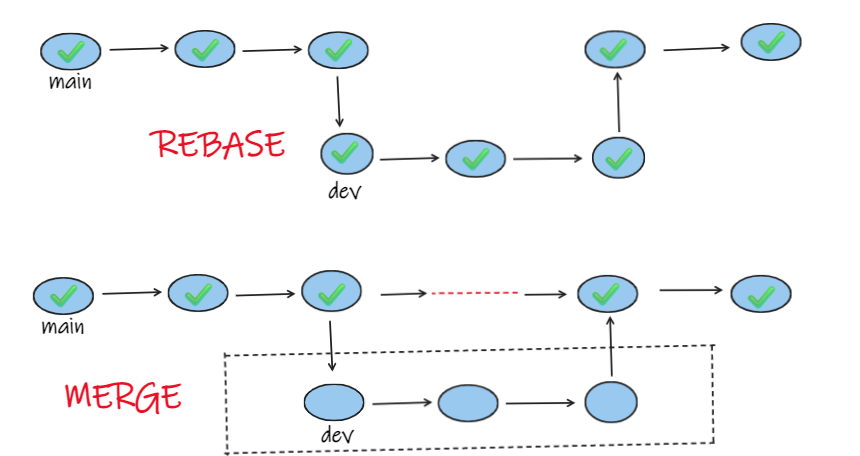
In the following screenshot, Merge would simply ignore commits in dev branch while rebase would include(overwrite) commits in dev branch to main branch.
Rebase is preferred in local branches and shouldn't be performed on master/main branch
If done accidently on master branch, rebase can be undo with the help of
git reflog
We have two branches
branch1andbranch2which have some commits in them.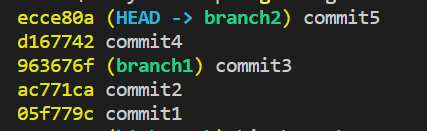
What
git rebase -i <branch2>does aftergit checkout <branch1>is, it would show which commits to include in rebase. After saving in editor rebase would be applied and commits from branch1 and branch2 would be displayed.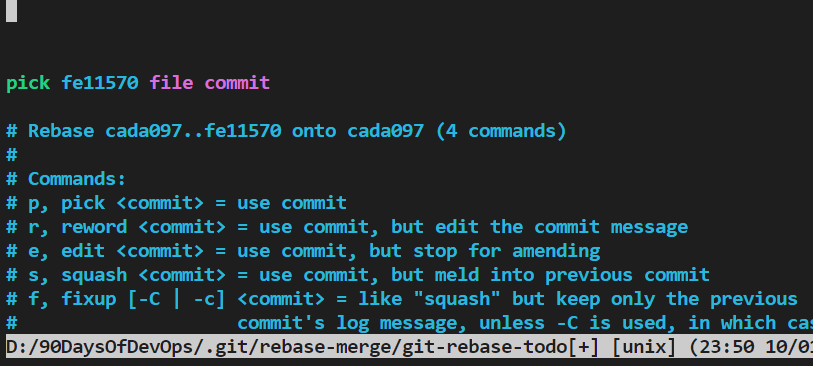
Here, picked commits have been applied. Since they were causing merge conflict, this would have to be resolved manually.
This was bit lengthy blog on advance git concepts but when hands on these concepts are applied understanding about them gets better.
Keep learning, keep giving feedback about blog.


